

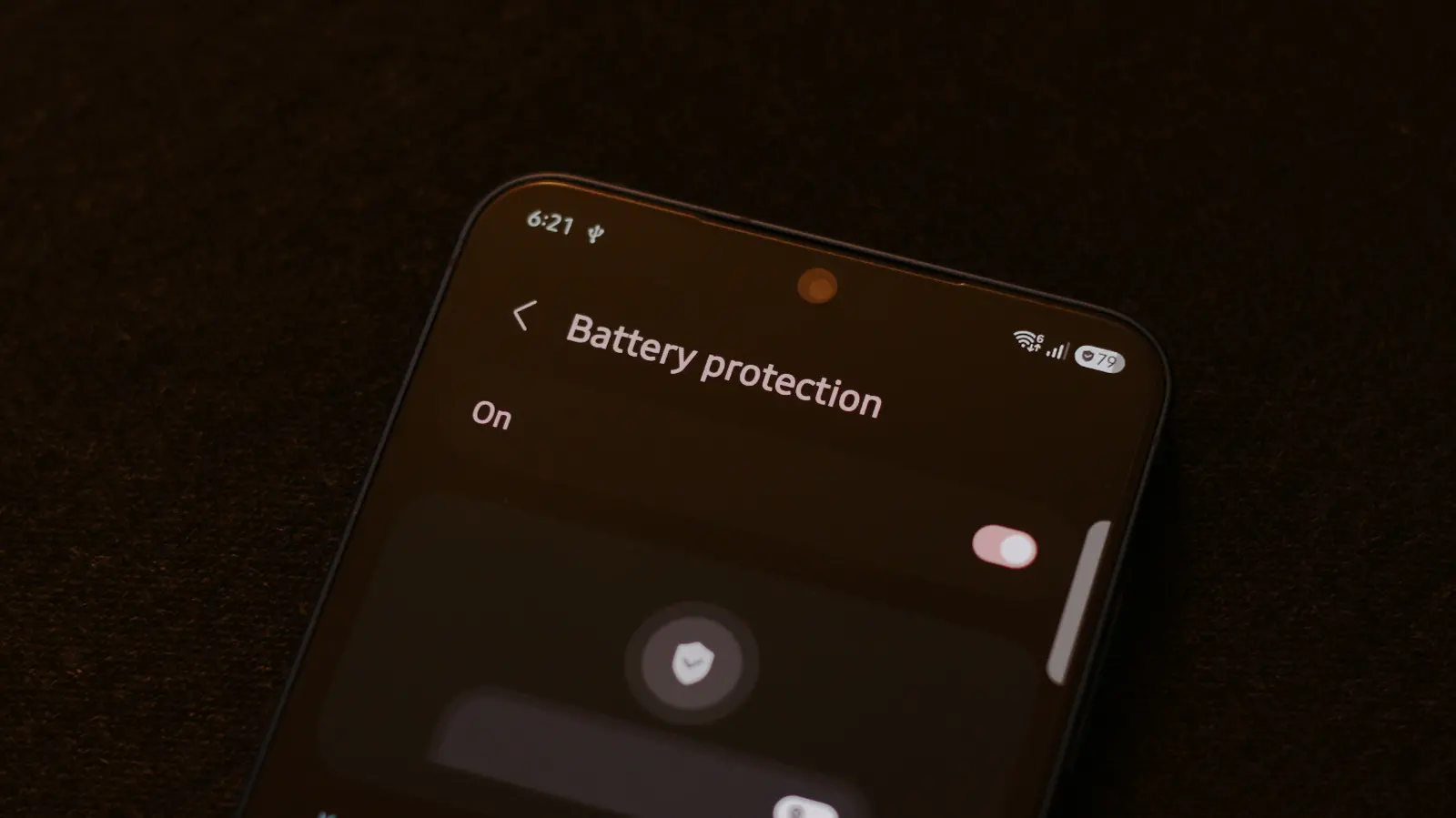
Over the years, the differences between Android and iOS have gradually narrowed. Both operating systems now support many of the same apps, offer very similar features, and often use the same UI and UX ideas for ease of use. A distinguishing factor, though, is how the two operating systems handle the status bar. It's far more informative on Android phones, giving you glanceable information about app notifications in addition to system indicators like network status and the battery percentage. Every manufacturer has a slightly different set of icons they like to use in the status bar.
On Samsung phones, you might sometimes spot a shield icon next to your battery percentage. This new indicator was added in One UI 7 and serves as a visual reminder that the Battery protection option is turned on. The feature, which has also started appearing on other Android and iOS devices, is designed to slow down battery degradation. It works by setting a limit on how much your phone charges. If you have a limit of 80% set, your phone will stop charging when it reaches that level.
You may even occasionally spot a leaf symbol inside your battery icon. This indicates that your phone is in power-saving mode, which adjusts things like your screen's brightness and refresh rate, and optimizes background activities to make your phone last a bit longer. To view more information about how your Samsung phone handles charging and power consumption, navigate to Settings > Battery.
Do you need to enable Battery protection?
There are countless Reddit posts with people sharing their phone's battery health numbers and worrying about squeezing every last bit of lifespan out of their batteries. It's true that lithium-ion batteries typically age the best when they aren't kept at a full charge for extended periods. Samsung's Battery protection feature can therefore help preserve your phone's battery health a bit.
Enabling this feature does mean your phone now has less battery to offer you because it's not fully charged. It's a good feature if you often end the day with 20% to 30% left, but if you're already charging more than once a day, preserving a bit of the long-term battery health may not be worth the sacrifice right now. Another factor that can be detrimental to your phone's battery health is temperature. If your phone is constantly running hot, especially while it's being charged, the added heat can accelerate the chemical aging of the battery.
If you tap the "Battery protection" option on your Samsung phone, you can actually change how aggressively this feature limits charging. The "Basic" mode lets the battery level drop to 95% before it starts charging to 100% again. The "Maximum" option will set a hard limit of your choosing. Samsung's Sleep time protection mode is better suited for those who leave their phones plugged in overnight. It learns your usage patterns, keeps the battery at 80%, and only resumes charging to 100% shortly before you wake up.
Understanding lithium-ion battery chemistry and charging habits
To fully appreciate why Samsung introduced the Battery protection feature, it helps to understand some fundamentals of lithium-ion (Li-ion) battery chemistry. These batteries, which power nearly every modern smartphone, have a finite lifespan measured in charge cycles. A charge cycle is defined as using 100% of the battery's capacity—though not necessarily all at once. For instance, using 50% one day and recharging to full, then using another 50% the next day, counts as one cycle. Over time, the battery's maximum capacity decreases due to chemical wear.
Two key factors accelerate this wear: high voltage (when the battery is near full charge) and high temperature. Keeping a Li-ion battery at 100% charge for prolonged periods, such as overnight or during a long workday plugged in at a desk, stresses the electrodes and promotes the formation of dendrites that can short the battery. Similarly, charging or discharging the battery at high temperatures—above 35°C (95°F)—can cause irreversible capacity loss. Samsung's Battery protection aims to mitigate the first factor by stopping charging before the voltage reaches its maximum.
Studies have shown that cycling a Li-ion battery between 20% and 80% can extend its useful life by two to three times compared to regularly charging to 100% and draining to near 0%. This is why many electric vehicle manufacturers and laptop makers already implement similar charge limiters. Samsung's implementation gives users control, but it also educates them through the shield icon—a constant reminder that their battery is being protected.
One UI 7: A deeper look at Samsung's battery management tools
One UI 7, Samsung's custom Android skin, brought a host of new features, but the battery management enhancements are among the most practical. Beyond the shield icon, the Battery settings page now offers more granular information about charging behavior. Users can view a graph of battery usage over the past 24 hours, see which apps consume the most power, and access adaptive battery settings that learn from usage patterns to limit background activity for rarely used apps.
The shield icon appears only when Battery protection is enabled in one of its three modes: Basic, Maximum, or Sleep time protection. Each mode has a different shade of icon? Actually, the icon remains the same shield, but its presence alone signals that the user has taken steps to preserve long-term battery health. Some users may find the icon intrusive or worry that it indicates a problem, but Samsung has clarified in support documentation that it is purely informational. Tapping on the icon in the status bar does nothing; users must go into Settings to adjust protection settings.
Interestingly, the shield icon is not the only battery-related symbol in One UI 7. The leaf icon for power-saving mode has been slightly redesigned, and there is a new circle-and-arrow icon for fast charging. These small changes are part of Samsung's broader effort to make the status bar more intuitive, especially as they continue to differentiate their software from stock Android and from other manufacturers like Google Pixel and OnePlus.
Comparing battery protection across smartphone brands
Samsung is not alone in offering battery protection features. Apple introduced Optimized Battery Charging with iOS 13, which learns your daily charging routine and waits to charge past 80% until shortly before you usually unplug. Apple's iPhone also shows a notification when the battery health degrades below a certain threshold. Similarly, Google's Pixel phones have Adaptive Charging that uses alarm clock data to slow charging overnight. OnePlus's Warp Charge and OxygenOS include Smart Charging, which pauses charging at 80% if it detects a long period of connection to the charger.
What sets Samsung apart is the combination of multiple user-selectable modes and the always-visible shield icon. Apple's Optimized Battery Charging is automatic and opaque—users may not even realize it is working unless they notice the message on the lock screen. Samsung gives the user direct control and a persistent visual cue. This can be empowering for tech-savvy users who want to micromanage battery health, but it could also be overwhelming for those who prefer a "set it and forget it" approach. Samsung's Sleep time protection mode bridges that gap by automating the behavior based on sleep schedule.
Another differentiator is that Samsung's Maximum mode lets users set a custom charge limit anywhere from 80% to 95%, not just a fixed 80% or 100%. This flexibility is rare among smartphone manufacturers. However, it requires the user to actively choose a percentage, which might be a step too far for many. In practice, most users who enable Maximum protection will likely stick with the default 80% limit.
Practical tips for maximizing your Samsung battery's lifespan
Aside from enabling Battery protection, there are several other steps Samsung users can take to prolong battery health. First, avoid exposing the phone to extreme temperatures. Do not leave it in a hot car, direct sunlight, or on a charger that generates excess heat. Second, use the official Samsung charger and cable, or at least a reputable third-party one that complies with USB-C charging standards. Poor quality chargers can cause voltage spikes that damage the battery.
Third, consider enabling adaptive brightness and using Wi-Fi instead of cellular data when possible, as constant searching for a signal drains the battery and generates heat. Fourth, close unnecessary background apps, although modern Android is quite good at managing this automatically. Fifth, update your phone's software regularly, as Samsung often includes battery optimizations in security patches and feature updates.
For those who are really serious about battery health, some users go as far as to only charge their phones to 50% for long-term storage—something Samsung recommends if you plan to store the device unused for months. But for daily use, the convenience of a full charge often outweighs the incremental battery degradation. The shield icon and Battery protection feature give users a middle ground: they can still charge to 100% but avoid staying at that level for too long if they use the Basic or Sleep time protection mode.
What does the future hold for smartphone battery technology?
While current Li-ion batteries are the standard, researchers and manufacturers are exploring solid-state batteries, which promise higher energy density, faster charging, and longer lifespans. Samsung itself has invested in solid-state battery development, but commercial availability in smartphones is still years away. Until then, software features like Battery protection are the best tools we have to delay the inevitable degradation.
In the meantime, the shield icon serves as a subtle nudge toward better charging habits. It reminds users that their phone's battery is a consumable component with a finite life—just like the tires on a car. Proper maintenance can stretch that life significantly, and Samsung's One UI 7 makes it easier than ever to take advantage of that knowledge. Whether you choose to enable Battery protection or not, the fact that the icon exists shows that smartphone makers are increasingly prioritizing longevity over raw specifications—a positive trend for consumers and the environment alike.
Source: SlashGear News