

There's a moment of pure annoyance when you double-click an MP3 file and nothing happens. You wait. The cursor spins. You check if the system is frozen. After what feels like an eternity, the track finally loads in VLC media player. For some users, this delay can stretch to 30 seconds or more. The question that inevitably arises: is your antivirus, Microsoft Defender, or the media player, VLC, responsible for the sluggish behavior? The answer is not as straightforward as you might think. Both applications perform heavy lifting behind the scenes, and their interactions can turn a simple action into a waiting game.
In this deep dive, we'll examine the roles Microsoft Defender and VLC play in the loading process, why they can cause delays, how to diagnose the real culprit, and what you can do to restore instant playback—without sacrificing security or features.
The invisible work of Microsoft Defender
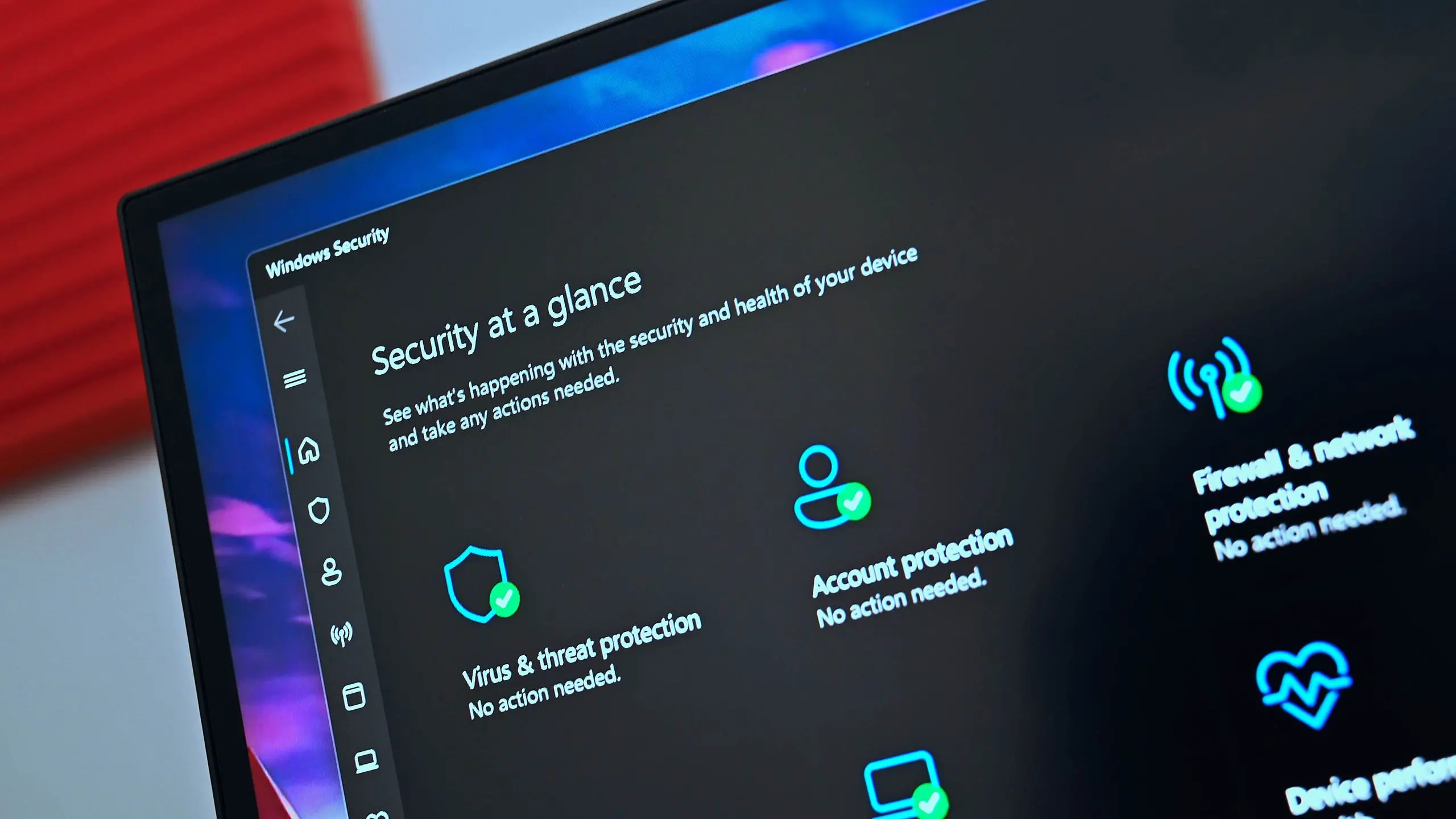
Microsoft Defender, the built-in antivirus of Windows 10 and Windows 11, is always watching. Its real-time protection scans files as you open them, looking for malware signatures, suspicious behavior, and other threats. Every time you access an MP3, Defender's filter driver intercepts the file read operation and checks the file against known threat intelligence. This scanning happens in the background, but it uses CPU, disk, and memory resources—especially if the file is large, located on a slow disk, or being accessed through a network share.
Modern versions of Defender rely on a combination of cloud-delivered protection and local machine learning. When you open a file, Defender may perform a local scan and simultaneously query Microsoft's cloud service to check the file's reputation. This adds network latency to the equation. If your internet connection is slow or the cloud service is temporarily unreachable, the scan can hang, delaying the file's release to the requesting application.
Defender's real-time protection is not limited to executable files. It scans all file types, including media such as MP3s, because malicious code can be embedded in seemingly innocent files. However, the scanning overhead is usually small for a single MP3. The problem is cumulative: if you're opening a folder with many tracks, or if the MP3 has embedded album art and metadata that triggers deeper analysis, the scan time multiplies.
VLC's complex load sequence
VLC media player is renowned for its versatility—it plays virtually anything you throw at it. That versatility comes at a cost. When VLC starts, it initializes a plugin cache, scans its modules, and loads a vast array of decoders, demuxers, and streaming capabilities. It also reads environment variables and configures audio and video output modules. On a modern system, this initialization typically takes a few seconds, but on older hardware or after a major update that invalidates the plugin cache, it can be noticeably slower.
When you actually open an MP3 file, VLC performs its own analysis. It parses the container structure, decodes metadata tags, and attempts to read embedded album art. For an MP3, this involves reading ID3 tags, which can include title, artist, album, cover art, lyrics, and more. If the file has a large embedded image, VLC may spend time extracting and scaling it for display. VLC also sets up the audio output pipeline, resampling buffers, and audio filters—all before the first sound reaches your speakers.
Moreover, VLC's playback engine is not the only thing running. By default, VLC enables a media library that scans folders and monitors for changes. If the library is active, VLC may trigger a background scan at startup, further straining disk and CPU resources. Add-ons, skins, and extensions can also delay initialization, especially if they are outdated or buggy.
How the two interact
The critical question is: does Microsoft Defender scan the MP3 file, or does VLC's internal processing cause the delay? In many cases, it's the combination. When you double-click an MP3, Windows hands the file to VLC. But before VLC can read the file, Defender's real-time protection intercepts the read attempt. Defender scans the file, possibly queries the cloud, then releases it to VLC. VLC then performs its own metadata parsing and buffer setup. If both steps are slow, you get a 30-second wait.
Testing has shown that Defender can add a noticeable overhead to file open operations, especially on systems with older hard drives or high thread counts being hogged by other antivirus processes. VLC, meanwhile, is not the lightest player; its startup time is significantly longer than that of the built-in Windows Media Player or lightweight alternatives like MPC-HC. When you combine Defender's scan with VLC's initialization, the user perceives a single, elongated loading time.
Diagnosing the true culprit
To determine which application is responsible for the delay, you can perform a few controlled tests. The first is to temporarily disable Microsoft Defender's real-time protection. Navigate to Windows Security → Virus & threat protection → Manage settings, and toggle real-time protection off. Then attempt to open an MP3 in VLC. If the loading time improves dramatically, Defender is the main culprit. If the delay remains, VLC is likely the bottleneck. Remember to re-enable real-time protection immediately after testing to keep your system safe.
For a more granular analysis, use Windows built-in tools such as Task Manager or Resource Monitor. Open Task Manager before launching the MP3, and observe CPU, disk, and network usage. If the Microsoft Defender Antivirus Service shows high CPU activity while the file is loading, it's actively scanning. If the VLC process itself is consuming high CPU for an extended period, VLC is doing the heavy lifting.
For deeper insight, download Process Monitor from Microsoft Sysinternals. This powerful tool can show every file operation, including whether defender.exe or VLC.exe is reading the MP3 file and how long each operation takes. You can filter by process name and look for operation timestamps. This will give you definitive evidence of which software is delaying the file access.
How to fix Defender-related slowdowns
If Microsoft Defender is identified as the problem, the most effective solution is to add exclusions for VLC and your music folders. In Windows Security, go to Virus & threat protection → Manage settings → Exclusions, and add both the VLC installation directory and the folder containing your MP3 files. This tells Defender not to scan those specific paths, reducing real-time interruption.
Be cautious with exclusions—only add folders you trust completely. If you frequently download MP3s from untrusted sources, excluding an entire folder could expose you to risk. A more targeted approach is to exclude only the VLC executable (vlc.exe) from file and folder scanning, while keeping your media folders protected. Defender will still scan external files when they enter your system, but it won't re-scan them every time you open them with VLC.
Additionally, ensure Defender is updated to the latest version. Microsoft regularly improves scanning efficiency and reduces overhead. You can also disable cloud-delivered protection during a performance emergency, but this is not recommended because it weakens your security. Instead, you can adjust the cloud protection level or turn off automatic sample submission if you suspect network latency is causing delays.
How to fix VLC-related slowdowns
If VLC is the bottleneck, there are several settings you can tweak. First, clear the VLC plugin cache. Go to Tools → Preferences → Advanced (if not visible, switch the settings radio button to "All"), and under the Interface section, click on "Plugins cache" and set it to rebuild. Alternatively, navigate to the VLC directory in AppData and delete the cache2 folder while VLC is closed. This forces VLC to rebuild its plugin database cleanly, which can significantly speed up startup.
Next, reduce VLC's media library workload. Go to Tools → Preferences → Media Library, and disable "Monitor nested folders" if you don't need automatic scanning. Also, uncheck "Scan for artifacts" or set "Album art policy" to "Fetch and cache" but not "Download". Embedded album art can be large, and VLC must parse it on every open. If you don't need to see cover art, disable it altogether.
Another common culprit is hardware acceleration. In VLC's preferences, go to Input/Codecs and change "Hardware Decoding" to "Automatic" or "Disabled". While this typically applies to video, it can affect audio processing on some systems. Also, under Audio, try changing "Output Module" to "DirectSound" instead of "WaveOut" or "ALSA" to see if that resolves the stutter.
You can also update VLC to the latest version. Developers frequently optimize startup times and fix memory leaks. Older versions may have bugs that cause excessive resource usage when loading metadata-heavy files.
Broader context and performance considerations
This issue is not unique to Defender and VLC. Antivirus software and media players have a long history of resource contention. In the early days of Windows, Norton and McAfee antivirus products were notorious for slowing down file operations, while media players like Winamp competed on low CPU usage. The modern landscape is more complex: Defender is a feature-rich security suite that uses cloud intelligence, and VLC is a universal player with a plugin-based architecture.
Hardware plays a crucial role. On a system with a solid-state drive (SSD), 16GB of RAM, and a modern processor, the combined overhead of scanning and parsing is negligible—MP3s load instantly. But on a budget laptop with a spinning hard disk and 4GB of RAM, the same operations can take tens of seconds. Hard drive seek times, cache misses, and memory page faults amplify the software delays.
Background processes also matter. If Windows Search is indexing your music folder at the same time you're trying to open a file, or if OneDrive is syncing the directory, Defender and VLC will compete for I/O bandwidth. It's always wise to ensure your system is not bogged down by numerous low-priority services while troubleshooting performance issues.
Alternative solutions and workarounds
If you cannot fully resolve the delay, consider using a lighter media player for MP3s. Options like mpv, Foobar2000, or Windows Media Player have lower initialization times and may not trigger Defender as aggressively. However, you may lose some of VLC's advanced features.
Another workaround is to preload your music playlist. Instead of opening individual MP3 files, create a playlist in VLC and let it scan the files in the background. When you're ready to listen, the files are already in VLC's cache, and playback starts immediately. This doesn't eliminate the underlying scanning delay but masks it for users who regularly listen to full albums.
You can also disable Defender for a specific time period using PowerShell, but this is risky. The best balance is to use exclusions and allowlists, as described earlier. Keep your security settings as strict as possible, but exempt trusted apps and folders that need high performance.
Finally, check if your MP3 files themselves are corrupted or contain very large album art. Some MP3s have embedded images that are 5MB or more, which can cause any player to stall. Use a metadata editor to strip excessive artwork and normalize tags. This reduces the parsing load on both VLC and the antivirus scanner.
The next time you face a 30-second wait for an MP3, don't just blame one side. Investigate methodically, test with exclusions, and optimize your media library. Both Microsoft Defender and VLC are powerful tools; with a little tuning, they can coexist without turning your music listening into a patience test.
Source: Windows Central News